
Before we can begin uploading a test feed into the Google Merchant Centre (GMC) it is important to refresh your product data to ensure that it is as up to date as possible. Navigate you your Google feed in the Product Viewer and Click 'Import Source & Build Master/Partner'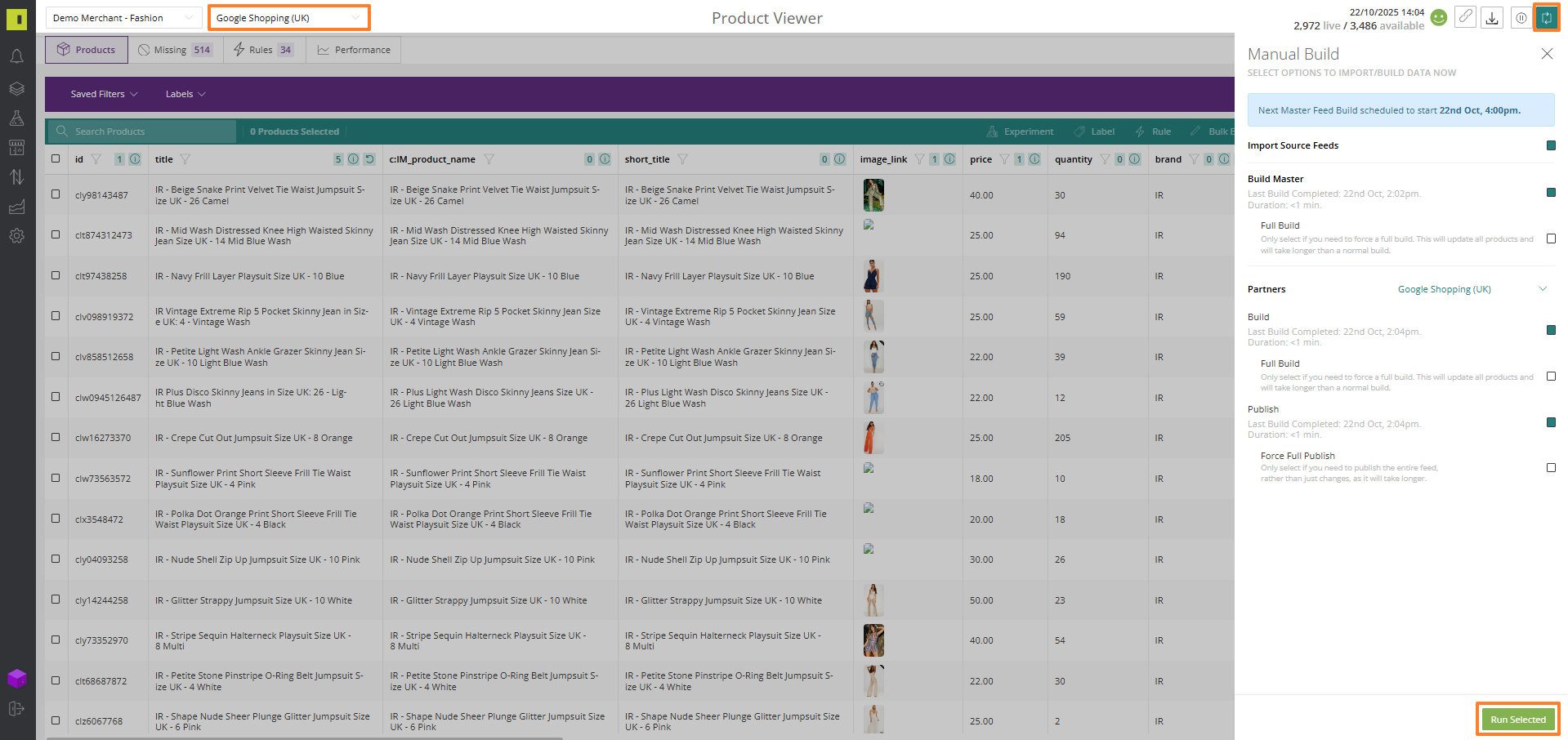
Once the feed build has completed, select the Download as CSV option here: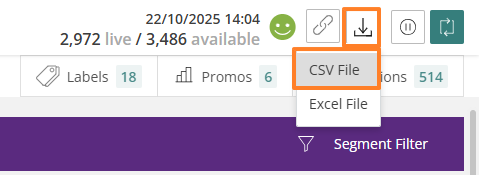
Next you will need to log into your Google Merchant Centre here - https://merchants.google.com
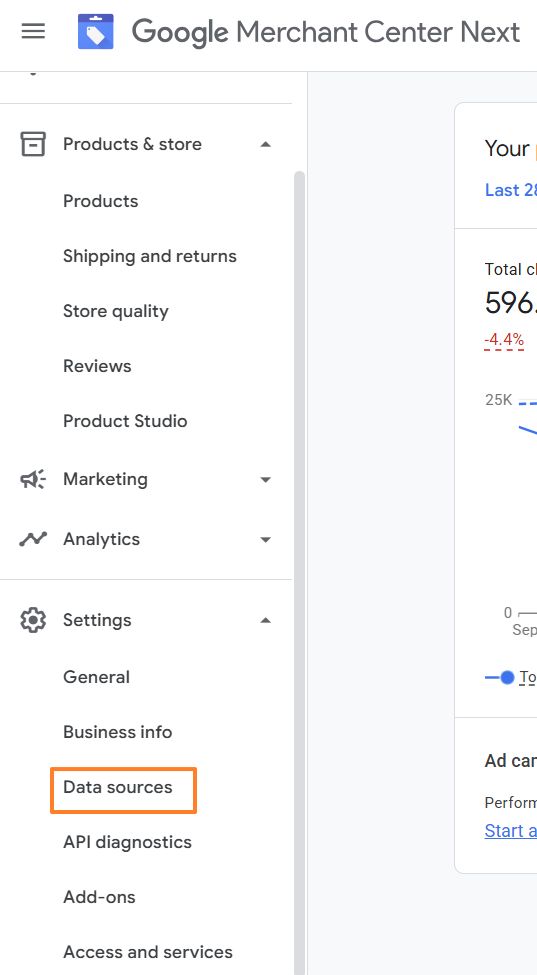
Once you have logged in, navigate to the side bar and under Settings, click Data Sources:
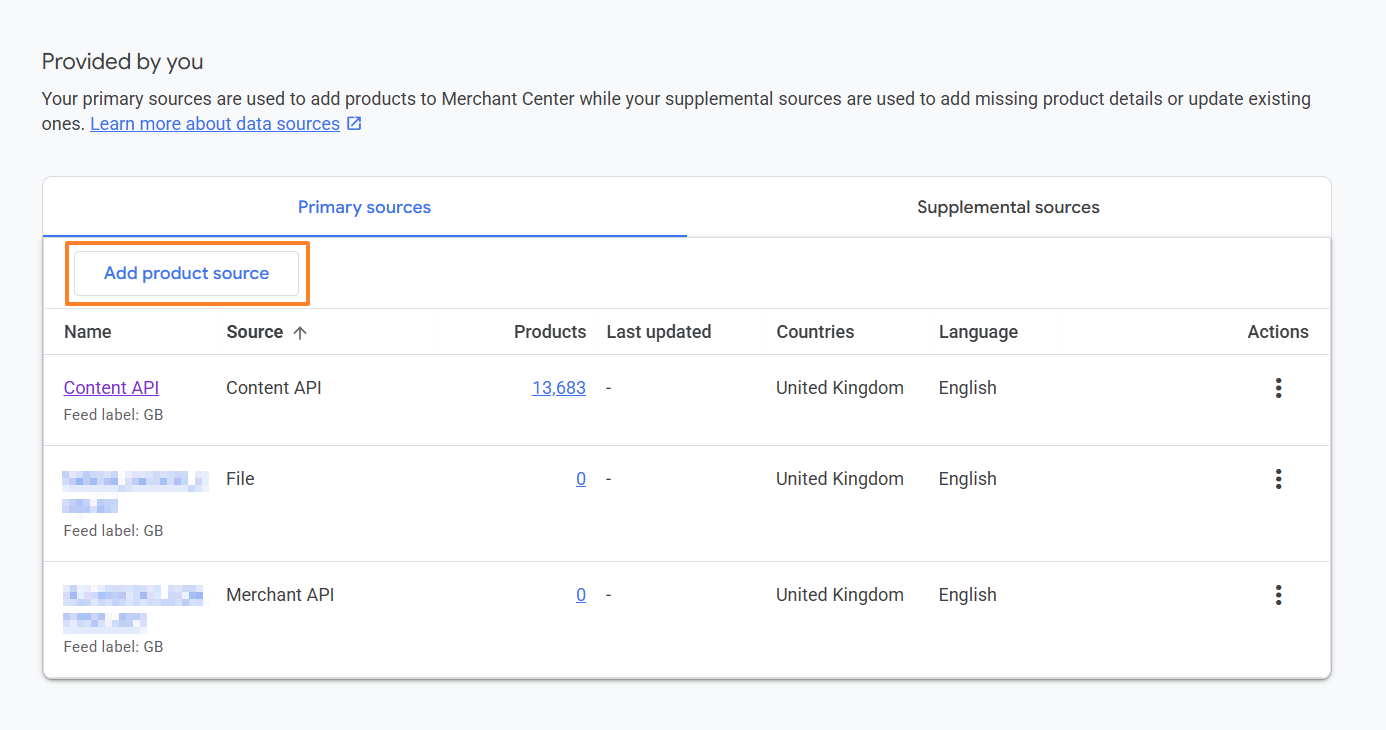
Click the Add Product Source button here:
Select Add Products from a File:
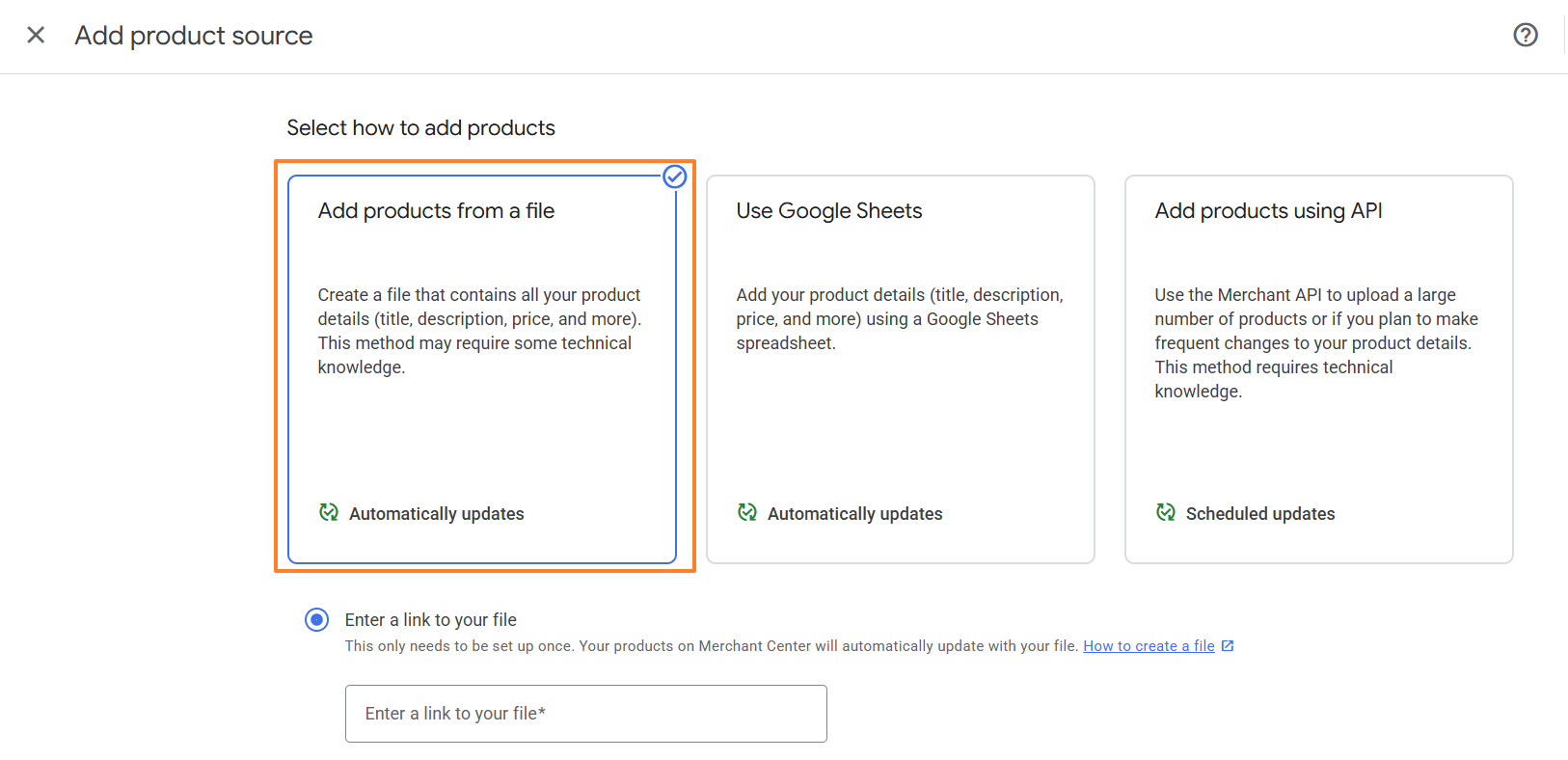
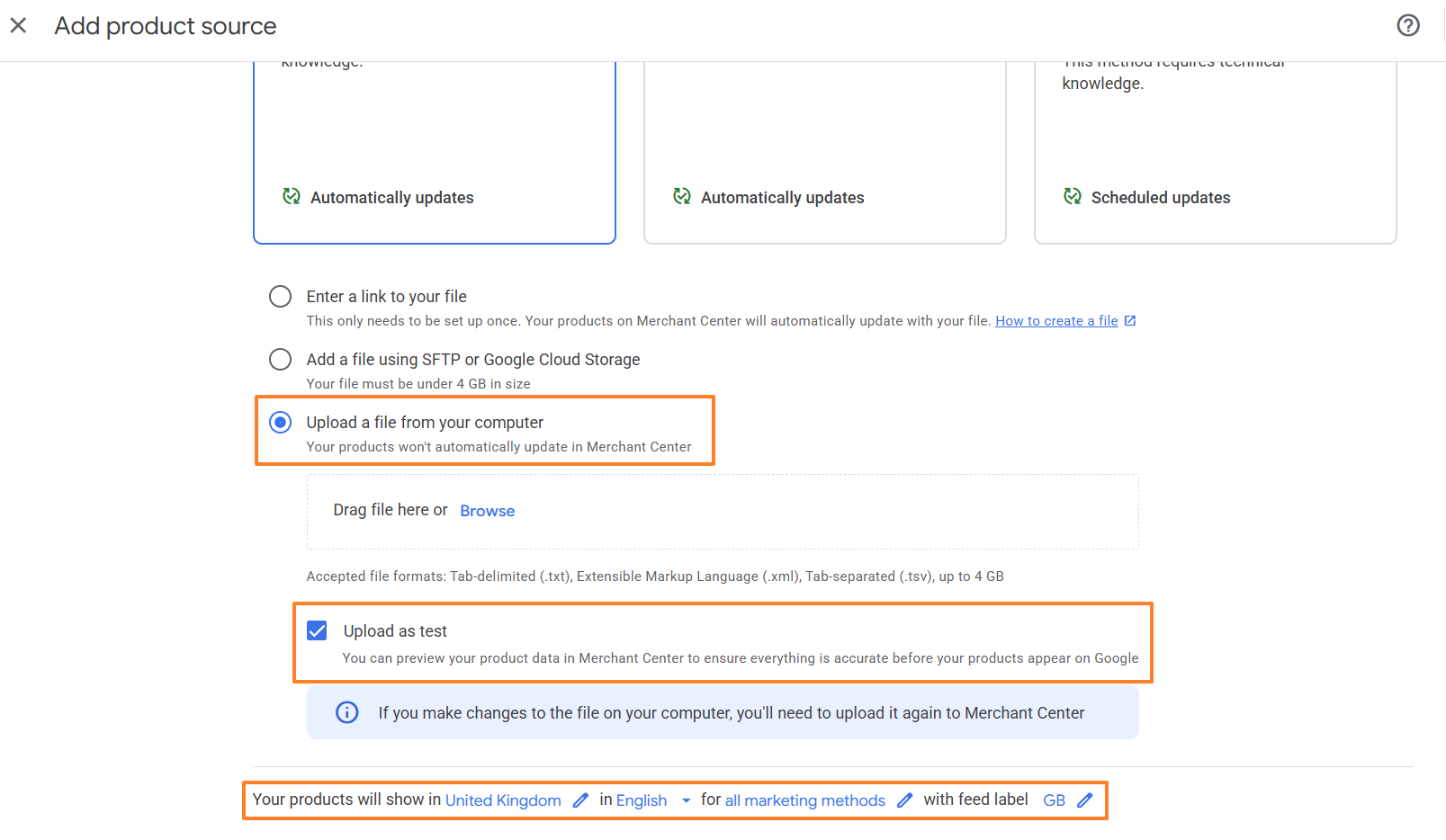
Next, you will need to select Upload a file from your computer, find the CSV file you just down loaded from the platform, make sure Upload as test is checked and that your Country, language, marketing methods and feed label are correct for the feed you are uploading. Then click Continue.
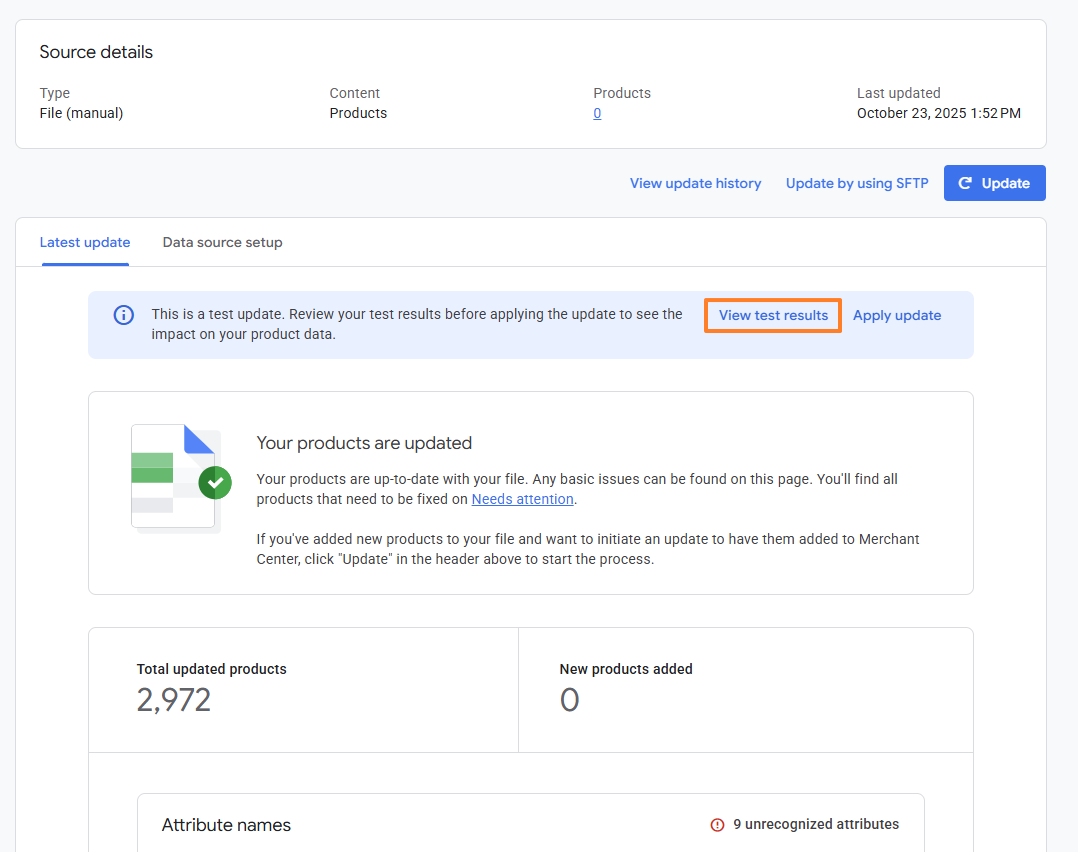
The GMC will then process your data and produce a Test Report which can be viewed:
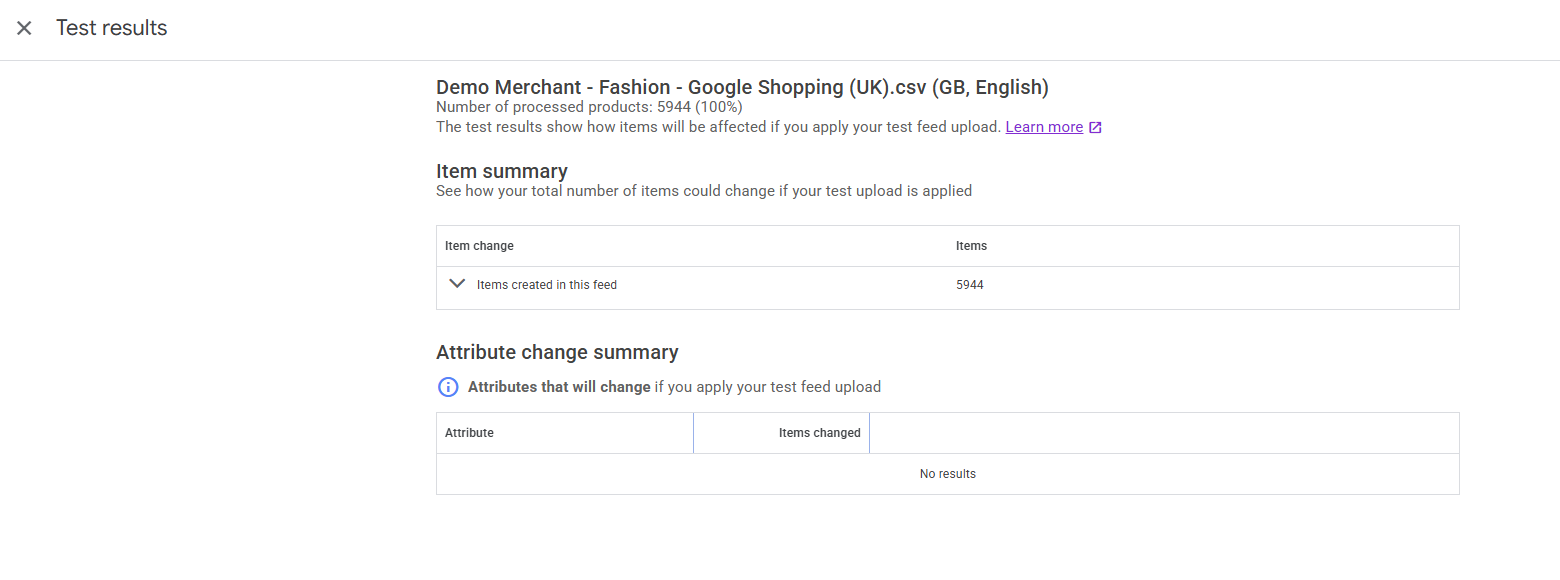
NOTE: It is quite common for the GMC to initially show an error on the test report but don't panic. Refresh the page after a few minutes and you should see the error message resolve. It is not uncommon for the Test Report to take over 15 minutes to generate.
Comments
0 comments
Article is closed for comments.