
Follow these steps to download a copy of the feed from the Merchant Centre Next Experience
Please Note: If you currently upload your product data via the Merchant or Content API, you will need to follow the steps outlined in Option 2 below
Option 1: Downloading a feed from a Non-API Source
First, you will need to log into your current Merchant Centre account.
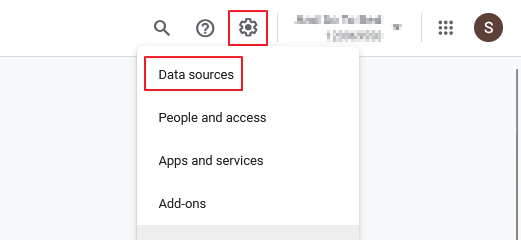
In the top right hand corner of the page, click the 'Settings' Icon and then click 'Data sources'
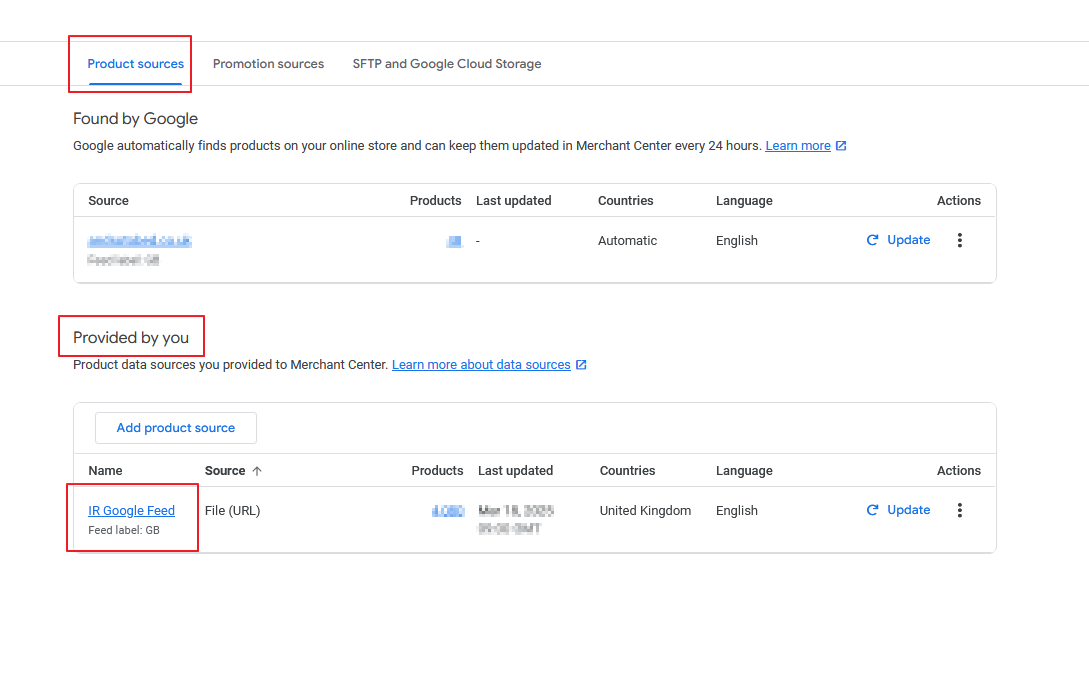
Under the 'Product Sources' Tab and 'Provided by you' section, locate your primary Google feed (IR Google Feed in the example below) and click the hyperlinked name of the feed.
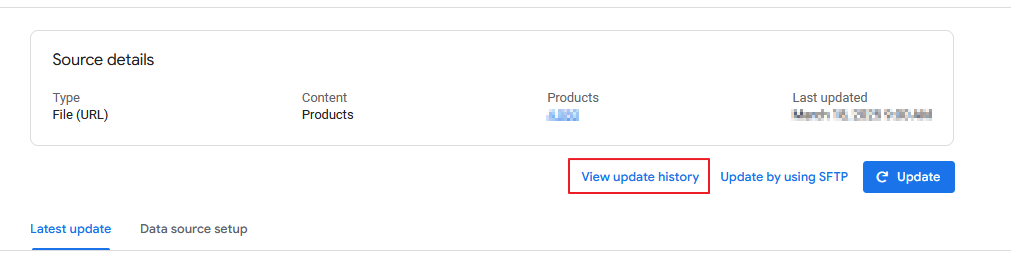
On the next screen, click 'View update history'
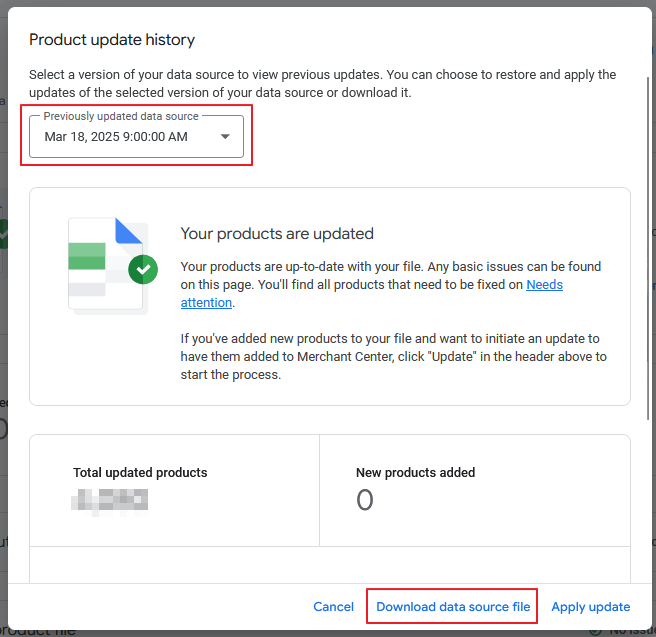
In the pop-up that opens, make sure that you have selected the latest version of the file from the dropdown and then click 'Download data source file'.
This is the file that you will need to send in order to perform the audit.
Option 2: Downloading a copy of the feed when using Merchant or Content API
Navigate to "Products and Shop > Products"
Scroll down to the Product grid and ensure that it is filtered to the correct Country/Source
Click the Download button in the top-right hand corner of the grid:
This is the file that you will need to send in order to perform the audit.
Comments
0 comments
Article is closed for comments.